How to make sequence animation in framer motion and nextjs
Greetings!!, In this blog we will see how we can create this beautiful sequence scroll animtion using framer motion and nextjs.
Let's start with create a empty nextjs project.
Here is the command:
pnpm create next-app@latest
I used pnpm here you can use npm or yarn to create an empty project.
Next up, we need to install dependecies for our animation project.
Here is the command:
pnpm add framer-motion
Great!!! Let's start with creating a custom canvas component with will take a draw function. This draw function will tell the browser how can we are rendering our images on scroll.
// src/components/Canvas.tsxtype CanvasProps = {draw: (context: CanvasRenderingContext2D) => void;height: number;width: number;};const Canvas = ({ draw, height, width }: CanvasProps) => {const canvas = React.useRef<HTMLCanvasElement>(null);React.useEffect(() => {const context = canvas.current!.getContext("2d")!;draw(context);});return <canvas ref={canvas} height={height} width={width} />;};export default Canvas;
As you can see in the above code, we need to pass our draw function as prop to this component. This draw function will takes context as argument which will be helpful for drawing images on this canvas.
But before drawing images let's download all the images and store it under public/images/.
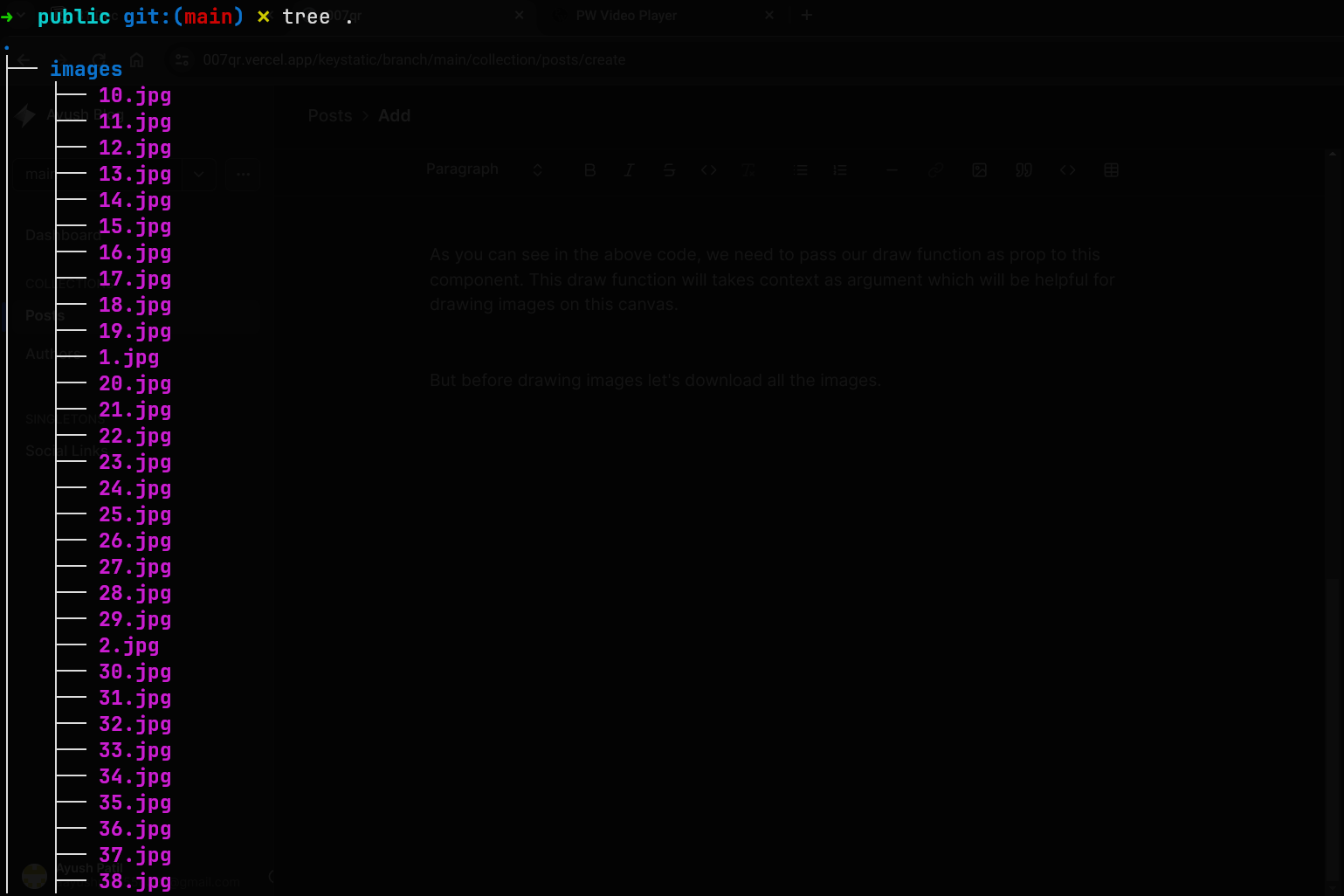
Then we need to write some utility function to load all the images manually and the draw-image function which will draw that image using our canvas context.
Let's create all the function under utility file.
// src/utils.tsexport const preloadImage = (src: string) => {return new Promise((resolve, reject) => {const img = new Image();const xhr = new XMLHttpRequest();xhr.open("GET", src, true);xhr.responseType = "blob";xhr.onload = () => {img.src = URL.createObjectURL(xhr.response);img.onload = () => resolve(img);};xhr.onerror = () => reject();xhr.send();});};export const preloadImages = (urls: string[]) => {return Promise.all(urls.map((src) => preloadImage(src)));};export const calcDrawImage = (ctx: CanvasRenderingContext2D,image: any,left = 0.5,top = 0.5) => {const cWidth = ctx.canvas.width;const cHeight = ctx.canvas.height;const width = image.width;const height = image.height;const ratio = width / height;const cRatio = cWidth / cHeight;let resultHeight, resultWidth;if (ratio > cRatio) {resultHeight = cHeight;resultWidth = cHeight * ratio;} else {resultWidth = cWidth;resultHeight = cWidth / ratio;}ctx.drawImage(image,(cWidth - resultWidth) * left,(cHeight - resultHeight) * top,resultWidth,resultHeight);};
PreloadImage:- This function will download the image.
PreloadImages:- This function will loop through all the images using the previously created preloadImage function to download them.
calcDrawImage:- This function calculates height, width, x and y coordinates and then render the a single images on to the canvas using the context we pass in as argument.
Now, Let's start with building this pieces together.
In our Home page we first start with importing all the necessary functions.
// src/app/layout.tsx"use client";import { useScroll, useTransform } from "framer-motion";import Canvas from "~/components/Canvas";import { calcDrawImage, preloadImages } from "~/utils";export default function Home() {return (<><div className="flex h-[4000vh] justify-center items-center "><div className="w-full h-full left-1/2 -translate-x-1/4 fixed top-0 justfiy-center items-center flex"><divclassName="w-[100svh] h-[100svh] relative"id="container">{/* Canvas component will go there*/}</div></div></div></>);}
Notice that I all created basic layout for render the canvas.
Then at the top of the file we need to define some constant, which we will in the render the images.
const FOLDER_NAME = "images";const IMAGES_NO = 80;const URLS: string[] = [];for (let i = 1; i <= IMAGES_NO; i++) {URLS.push(`/${FOLDER_NAME}/${i}.jpg`);}
The FOLDER_NAME is the name of folder where our all images are stored.
The IMAGES_NO are the number of images we are storing inside the images folder.
Then the URLS is where we store path to all the images.
Next we will use useScroll hook from framer motion to get the scroll progress and useTransform hook to transform the scroll values.
// src/app/page.tsxexport default function Home() {const { scrollYProgress } = useScroll({offset: ["start end", "end end"],});const y = useTransform(scrollYProgress, [0, 1], [0, IMAGES_NO]);/* Previous code */}
Next comes the draw function.
// src/app/page.tsxconst draw = async (context: CanvasRenderingContext2D) => {const images = await preloadImages(URLS);calcDrawImage(context, images[0]);scrollYProgress.on("change", () => {calcDrawImage(context, images[Math.round(y.get()) - 1]);});};
This function will first preload all the images using our preloadImages function and then uses calcDrawImage function with the context of our canvas to render the image. After that, we a event on scrollYProgress called change to track the when the user scroll and render the images sequentially
Finally render the Canvas component.
<Canvas draw={draw} height={700} width={900} />